How to edit a house plan
After a plan is drawn you can type a change in plain words, or ask for a different layout.
Before you start
- A plan that is already drawn.
- Your AI still connected.
Tips
- Change one thing at a time. It is easier to check.
- A change can move other rooms. Check the sizes after each change.
Steps
- Step 1
Make a plan first, then scroll to "Change something" under the drawing.
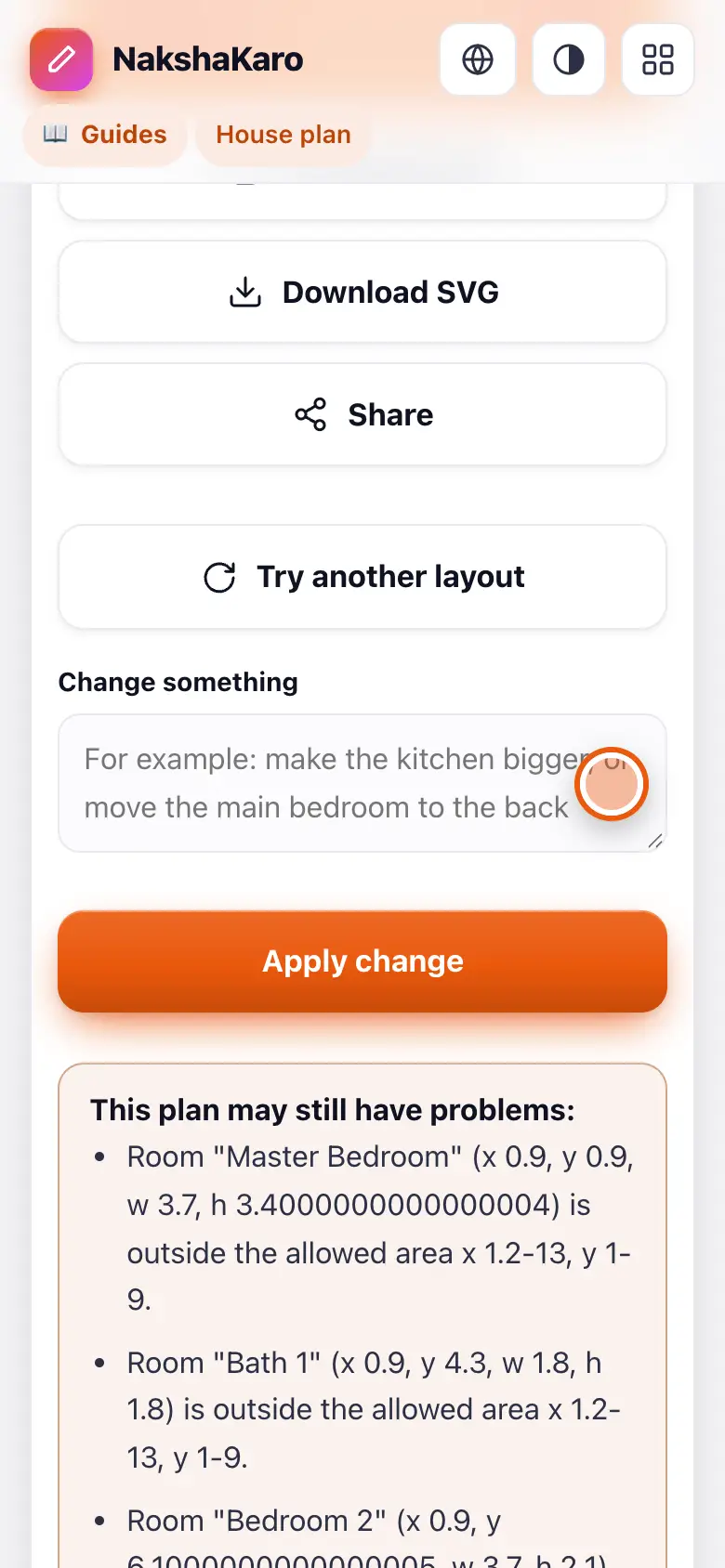
- Step 2
Type what you want, for example "make the kitchen bigger".
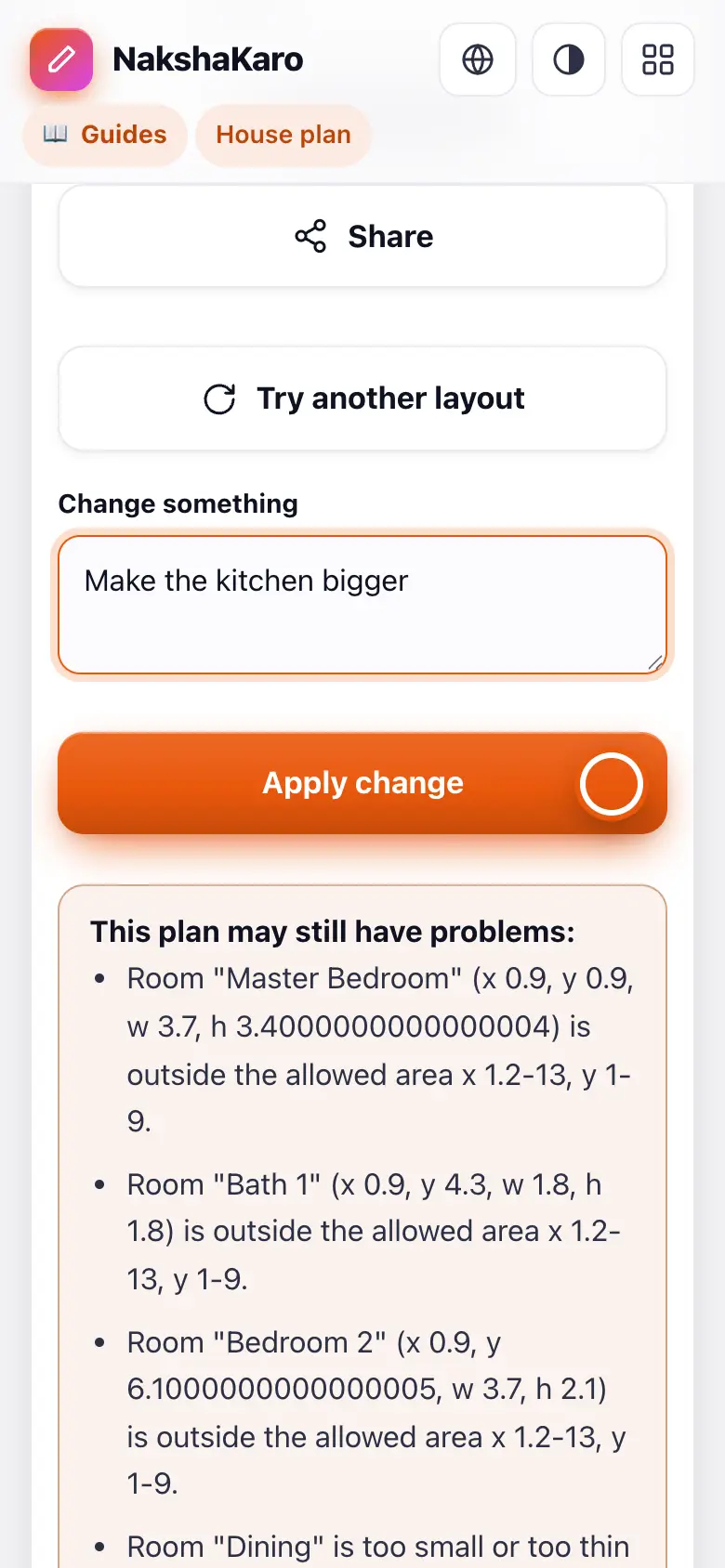
- Step 3
Tap Apply change. The plan is drawn again with your change.
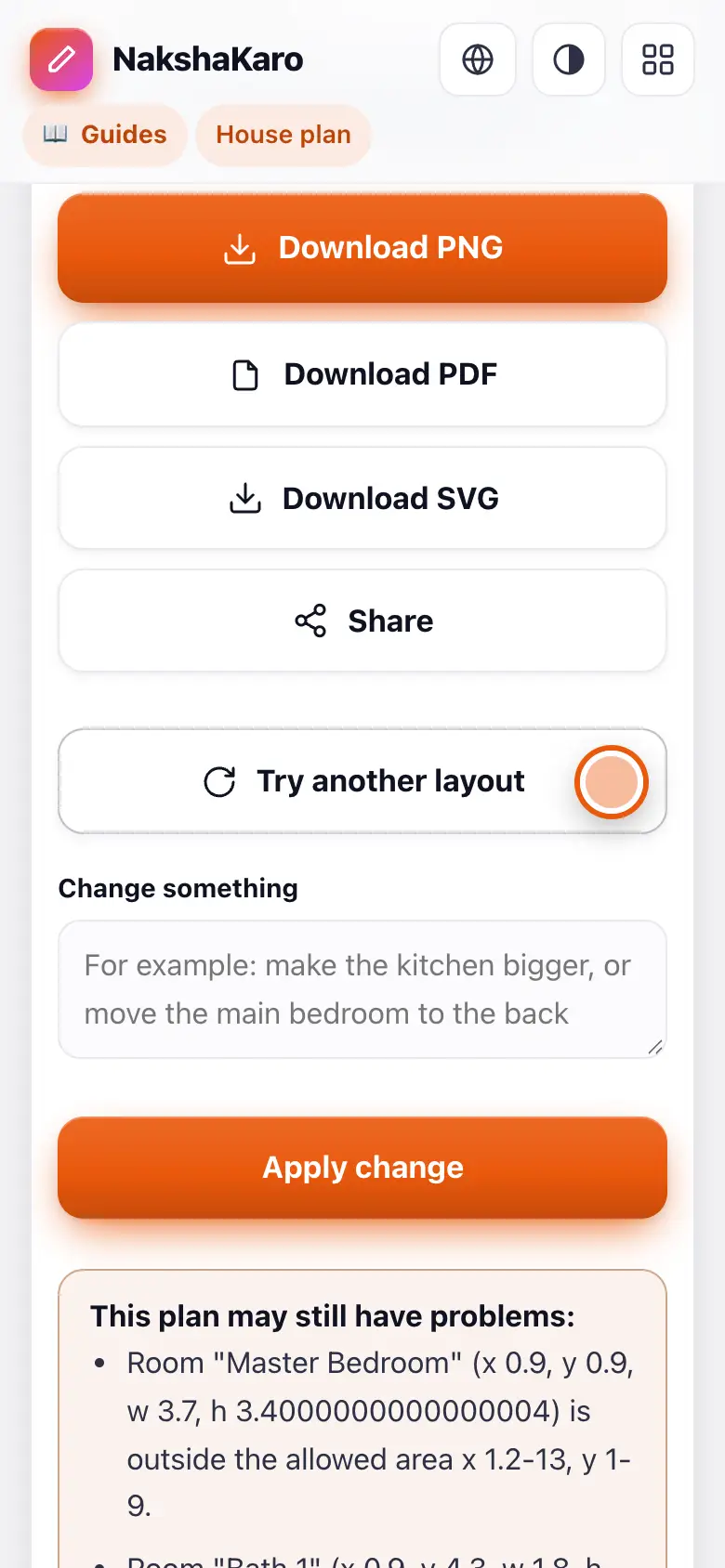
- Step 4
Not happy? Tap Try another layout for a different arrangement.
If something goes wrong
The AI changed more than I asked.
Be specific, for example "only make the kitchen 2 feet wider". You can also start again with a new plan.
The change could not be applied.
The new plan may not fit your plot. Try a smaller change, or tap Try another layout.
Last updated: